
Loading...
Please note: we use the term "add-in" as in "the 'Get add-ins' button", but depending on your version of Outlook, they might call them "apps", so it would be "the 'Get apps' button".
Access the Add-ins dialog in Outlook 🧩
In the Home tab of the Outlook ribbon, locate and click the Get add-ins button. This will open the add-ins dialog.
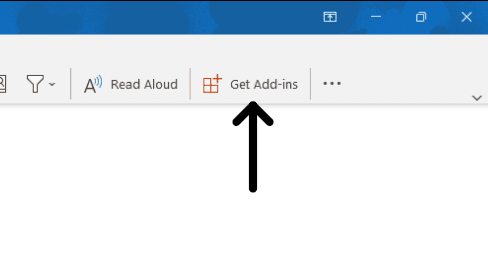
If you're not seeing the Get add-ins button, you have different options depending on your platform:
The Get add-ins button won't be found in the Home ribbon, just like on desktop versions. When viewing an email, there should be a button next to the "Reply" and "Forward" buttons, with an icon featuring a minimalist version of an appstore. Click it and then "Get add-ins".
If you still can't see the button, consider customizing the visible buttons: open the actions menu, next to the "Reply" and "Forward" buttons, and select "customise actions". From there, you should be able to make the Get add-ins button visible.
Other ways of finding the Get add-ins button:
Install the Pipelook add-in ⚙️
In the add-ins dialog, search for Pipelook. Once you found us, hit the "install" button!
Enjoy Pipedrive in Outlook 🎉 🥳
You should now see Pipelook in add-ins list. Close the add-ins dialog. When reading an email, click the Pipelook button to open the side panel and connect your mailbox with Pipedrive.
See the main help page for more help on how to use the add-in.
If you're stuck, contact support by email: support@pipelook.app. We're here to help!